Guides
Nano Banana AI Image Generator: How to Use Gemini
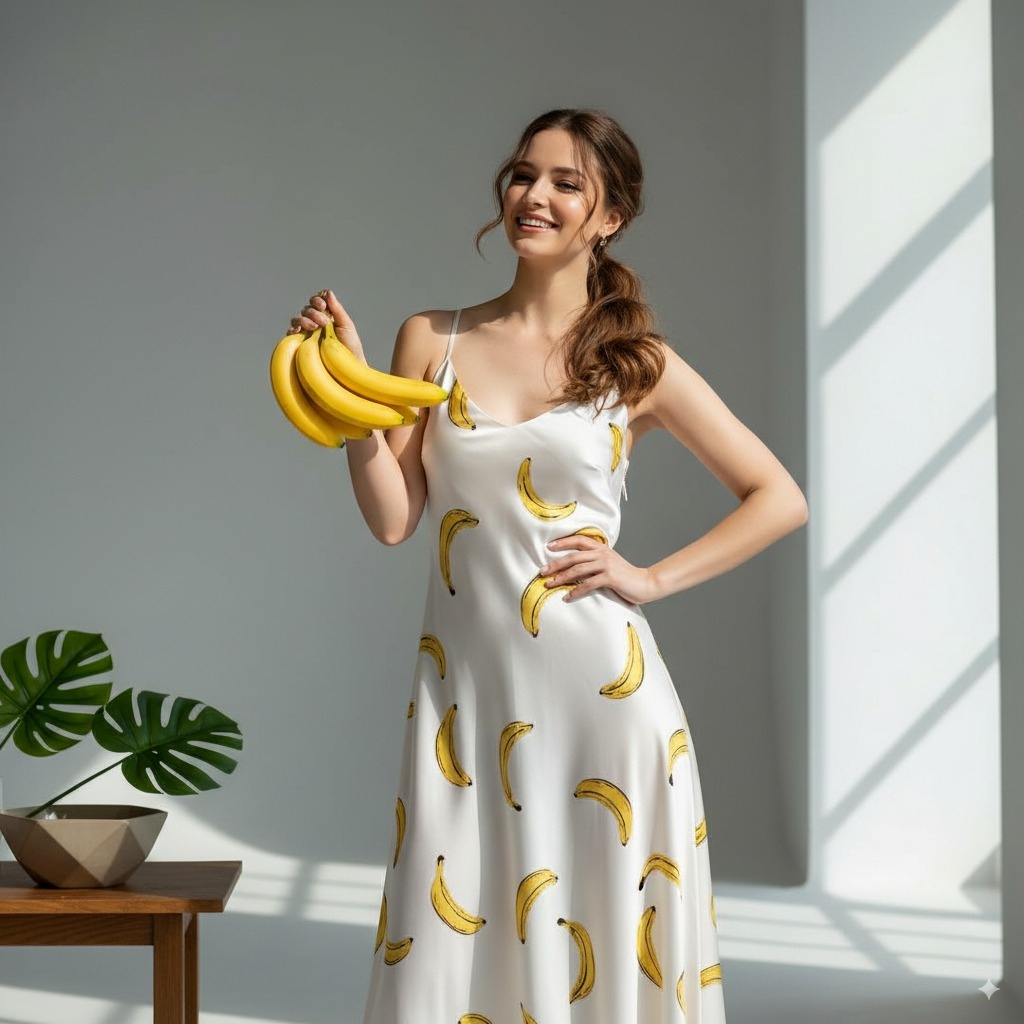
Table of Contents
- Quick Answer
- What Is Nano Banana?
- What It Does Best
- Nano Banana 2 vs Lite vs Pro
- Is Nano Banana Free?
- Where to Use Nano Banana
- Gemini App: Best for Most People
- Google AI Studio: Best for Testing
- Gemini API: Best for Automation
- How to Use Nano Banana in Gemini
- Text-to-Image Prompt Formula
- Example: E-commerce Product Image
- Image Editing Prompt Formula
- Example: Replace a Background
- How to Combine Multiple Images
- 18 Practical Nano Banana Use Cases
- Fashion Mockups
- Storyboards and Sequential Scenes
- Prompt Checklist for Better Results
- Common Problems and Fixes
- Nano Banana vs Other Image Tools
- Before You Publish or Sell an Image
- Official Sources and Freshness
- Related Nano Banana Guides
- Final Recommendation
Quick Answer
What is Nano Banana? It is the name Google uses for Gemini’s AI image generator and photo editor. It can create images from text, edit uploaded photos with natural-language instructions, combine multiple reference images, preserve characters across revisions, and place readable text into designs.
For the fastest start, open the official Gemini image generator, choose Create images, enter a prompt, and refine the result in the same conversation. Use Nano Banana 2 for most work; use Lite for quick basic ideas or Pro when typography, complex layouts, and precise control justify a paid plan.
| Need | Best starting point | Prompt pattern |
|---|---|---|
| Create from scratch | Text-to-image | Subject + action + scene + composition + style + format |
| Edit one photo | Image-to-image | Change + preserve + output |
| Combine references | Multi-image editing | Assign one role to each image |
| Keep one character | Identity-controlled editing | Lock face, hair, proportions, and signature details |
| Make a poster | Text-aware generation | Exact copy + hierarchy + layout + aspect ratio |
What Is Nano Banana?
Nano Banana is the product name used for Google’s Gemini image-generation and image-editing models. It is not a separate drawing app: the consumer experience lives in Gemini, while developers can access supported image models through Google AI Studio and the Gemini API.
The original codename became popular because the model was unusually good at conversational editing. Instead of selecting layers or painting a mask, you can say, “replace the background with a daylight studio, but keep the person, clothing, and camera angle unchanged.” Gemini generates a new image and lets you continue the edit as a conversation.
You may see the name written as Nano Banana, Nano-Banana, or Nanobanana. They refer to the same Google image-model family, not three different tools.
What It Does Best
- Generates a new image from a written description.
- Edits a generated or uploaded image with plain-language instructions.
- Combines people, products, poses, styles, or scenes from multiple references.
- Maintains the appearance of a person or character across related images.
- Changes local details such as an object, background, color, or lighting.
- Produces posters, diagrams, labels, and multilingual text with improving accuracy.
- Resizes or reframes a visual for different aspect ratios without simply cropping it.
Nano Banana 2 vs Lite vs Pro
Google changes model availability over time, so choose by job rather than by the longest model name.
| Model | Choose it for | Know before using it |
|---|---|---|
| Nano Banana 2 Lite | Fast drafts, simple concepts, low-stakes exploration | Not intended for multiple references or long edit chains |
| Nano Banana 2 | Most image generation, editing, reference blending, and production drafts | Best default balance of speed, quality, world knowledge, and text rendering |
| Nano Banana Pro | Detailed infographics, difficult typography, complex instructions, and higher creative control | Requires an eligible Google AI plan and is subject to quotas |
In the Gemini app, the selected Gemini mode influences which image option is used. Google’s current help documentation says Flash-Lite uses Nano Banana 2 Lite, while Flash or Pro can use Nano Banana 2. Eligible paid users can also redo an image with Nano Banana Pro.
For historical context and model changes, see our Nano Banana 2 update guide.
Is Nano Banana Free?
You can generate images in Gemini without a paid Google AI plan, but “free” does not mean unlimited or universally available. Limits can depend on your account, location, age, selected model, and current product rules. Paid plans provide additional access, higher limits, and Pro regeneration features.
Google currently states that users without an AI plan can download 1K images, while eligible plan users can download at 2K. Treat those details as product settings, not permanent specifications: verify them in Gemini before committing to a client batch.
Where to Use Nano Banana
Gemini App: Best for Most People
Use Gemini on the web or the official mobile app when you want a visual interface, conversational revisions, downloads, and no API setup.
Google AI Studio: Best for Testing
Use Google AI Studio when you want to test model behavior, compare prompts, or prepare a repeatable developer workflow. Model availability and free-tier quotas can differ from the Gemini app.
Gemini API: Best for Automation
Use the Gemini API image-generation documentation when you need images inside an application, batch workflow, or internal tool. Check the live documentation for supported model IDs, input limits, pricing, safety settings, and output formats before implementation; these details change faster than a static tutorial can safely track.
How to Use Nano Banana in Gemini
- Open Gemini and sign in.
- Choose Create images from the tools or sidebar.
- Select the Gemini mode that fits your speed and quality needs.
- Enter a text prompt, or upload one or more images to edit.
- Inspect composition, identity, text, hands, labels, and small objects.
- Ask for one correction at a time, then download the final image.
Availability differs by country, language, account type, and age. Google’s current help page says image editing requires users to be 18 or older, while generation may be available at a lower age threshold depending on the country and account.
Text-to-Image Prompt Formula
Start with a visual brief, not a list of vague adjectives.
Create a [image type] of [subject] [action] in [scene].
Composition: [framing, camera angle, subject placement].
Lighting: [light source, time of day, contrast].
Style: [photographic, illustrated, cinematic, editorial, 3D].
Details: [materials, colors, expression, props, exact text].
Output: [aspect ratio and intended use].
Avoid: [specific unwanted artifacts or elements].
Example: E-commerce Product Image
Create a premium studio product photograph of a matte-black insulated bottle
standing on pale limestone. Frame it at eye level with generous negative space
on the left. Use soft morning window light, realistic condensation, and a warm
neutral background. Keep the bottle label exactly as written: "NORTH / 01".
Output a clean 4:5 image for an e-commerce campaign. Do not add extra products,
logos, or decorative text.
The exact label may still need correction. Generate the composition first, then ask Gemini to fix only the text while preserving everything else.
Image Editing Prompt Formula
For uploaded images, divide the instruction into change, preserve, and deliver.
Using the uploaded image as the source:
- Change: [one specific edit].
- Preserve exactly: [identity, product shape, pose, clothing, label, camera angle].
- Match: [lighting, perspective, shadows, texture, color].
- Deliver: [aspect ratio, resolution intent, use case].
- Do not: [unwanted changes].
Example: Replace a Background
Replace only the background with a bright contemporary kitchen.
Preserve the person, face, hair, pose, clothing, crop, and camera angle exactly.
Match the original direction of light and add a realistic contact shadow.
Deliver a natural 4:5 lifestyle photograph. Do not retouch the face or add objects.
This constraint-first pattern is more reliable than a long creative paragraph because it tells the model which pixels are allowed to drift.
How to Combine Multiple Images
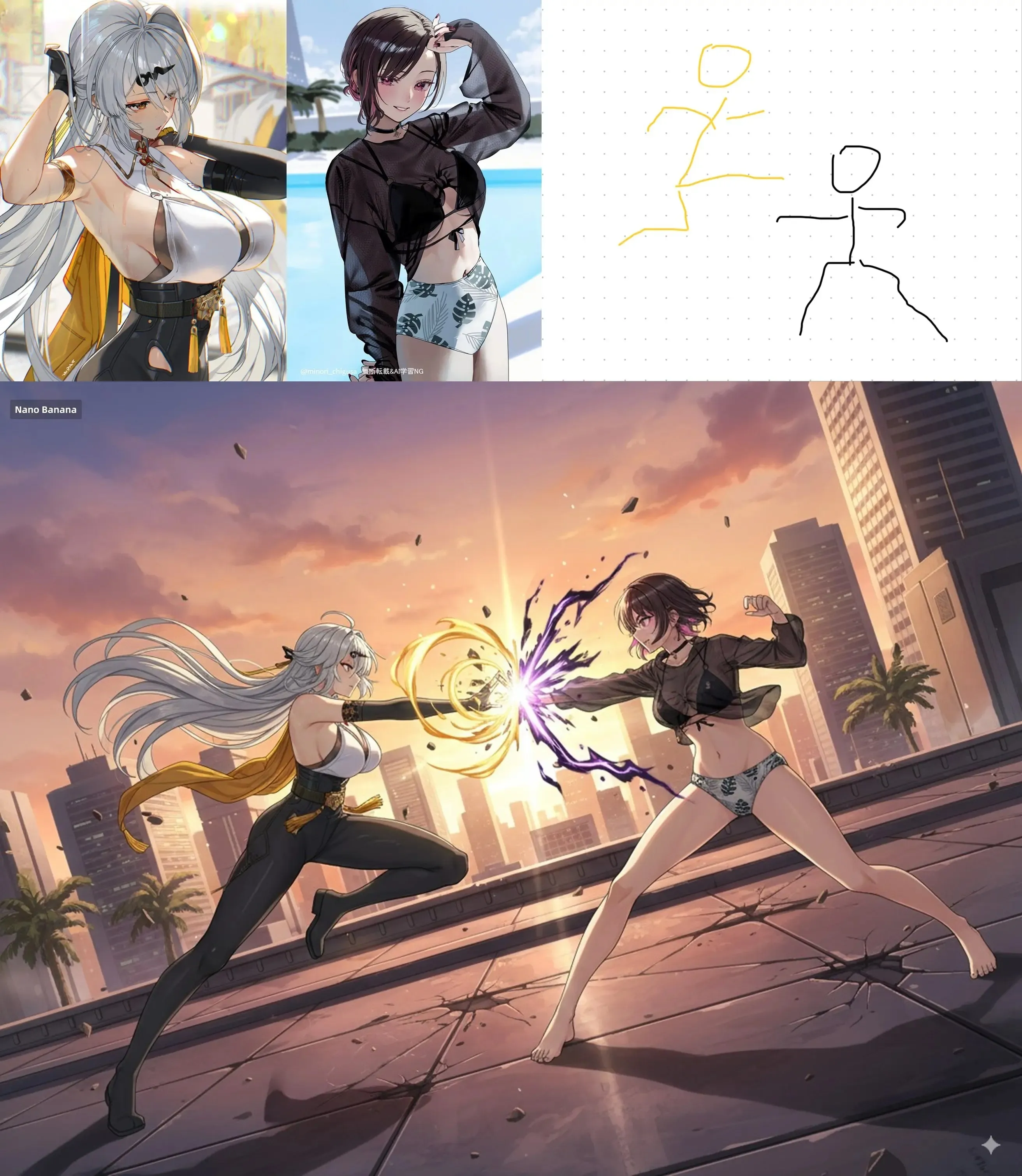
Assign each uploaded image one job. Do not say only “combine these”.
Use Image 1 for the person's identity and facial features.
Use Image 2 for the outfit only.
Use Image 3 for the pose and camera angle only.
Place the result in a clean daylight studio with a soft gray background.
Keep the face, body proportions, and outfit construction consistent.
Do not copy the people or background from Images 2 and 3.
Output a realistic full-body 4:5 fashion photograph.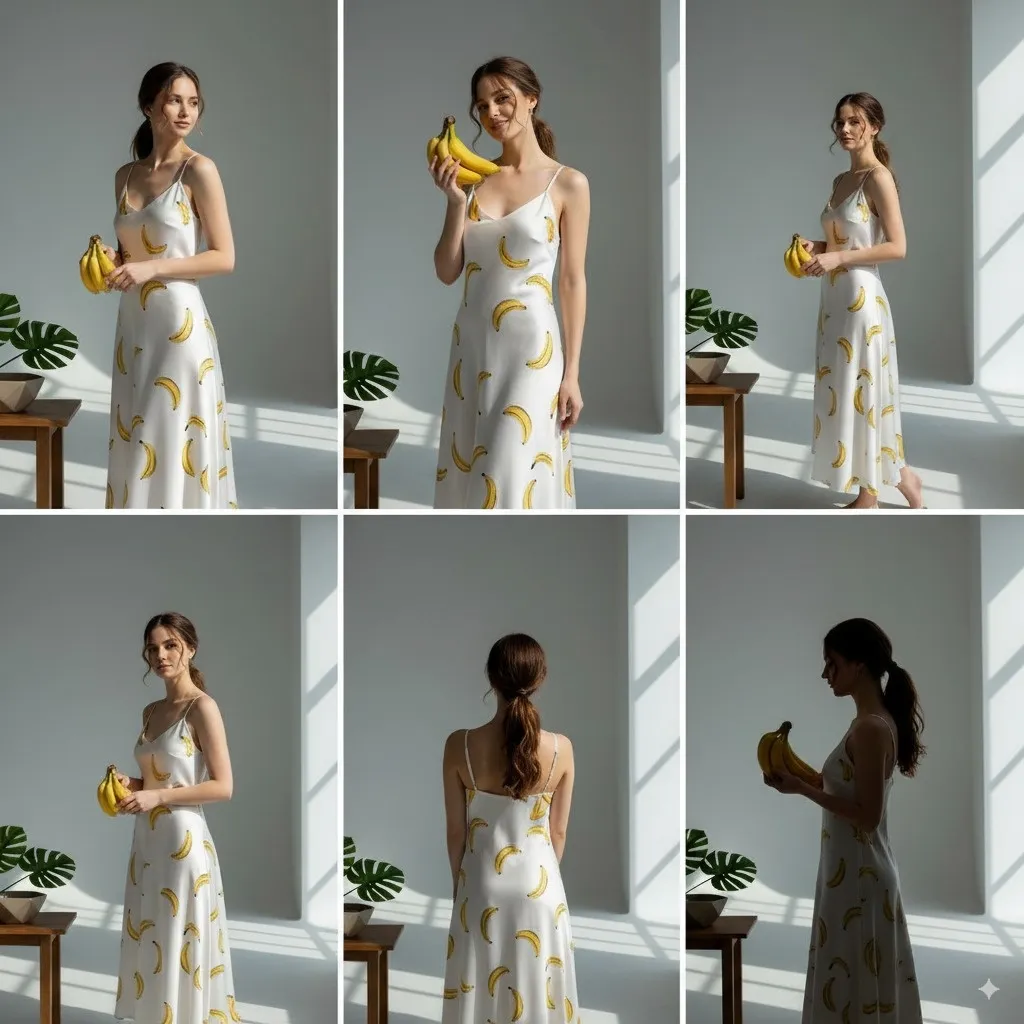
If the body position matters, use the dedicated Nano Banana pose-reference workflow. For identity drift across a series, follow the character-consistency guide.
18 Practical Nano Banana Use Cases
Nano Banana is most valuable when it shortens a real visual-production task.
| # | Use case | Useful first instruction |
|---|---|---|
| 1 | Background replacement | Replace only the background and match the original light direction. |
| 2 | E-commerce product shots | Place this exact product in a clean studio scene; preserve its shape and label. |
| 3 | Fashion try-ons | Apply the outfit from Image 2 to the person in Image 1; keep identity unchanged. |
| 4 | Character consistency | Show the same character in a new scene; lock face, hair, palette, and proportions. |
| 5 | Pose transfer | Use the third image only for pose and body balance. |
| 6 | Poster design | Create a poster around this exact headline and leave clear text hierarchy. |
| 7 | Social-media resizing | Recompose this visual for 9:16 without cropping the subject or logo. |
| 8 | Ad localization | Replace only the copy and culturally specific setting for the target market. |
| 9 | Photo restoration | Repair scratches and fading without changing recognizable facial features. |
| 10 | Interior concepts | Restyle this room while preserving walls, windows, and floor-plan geometry. |
| 11 | Product recoloring | Change only the product color; preserve material, reflections, and branding. |
| 12 | Storyboards | Generate six sequential frames with one character, location, and visual language. |
| 13 | Comics | Build a readable panel sequence with consistent characters and speech text. |
| 14 | Infographics | Explain this process as a labeled diagram with short, exact copy. |
| 15 | Hairstyle previews | Change only hair length and style; keep face and lighting unchanged. |
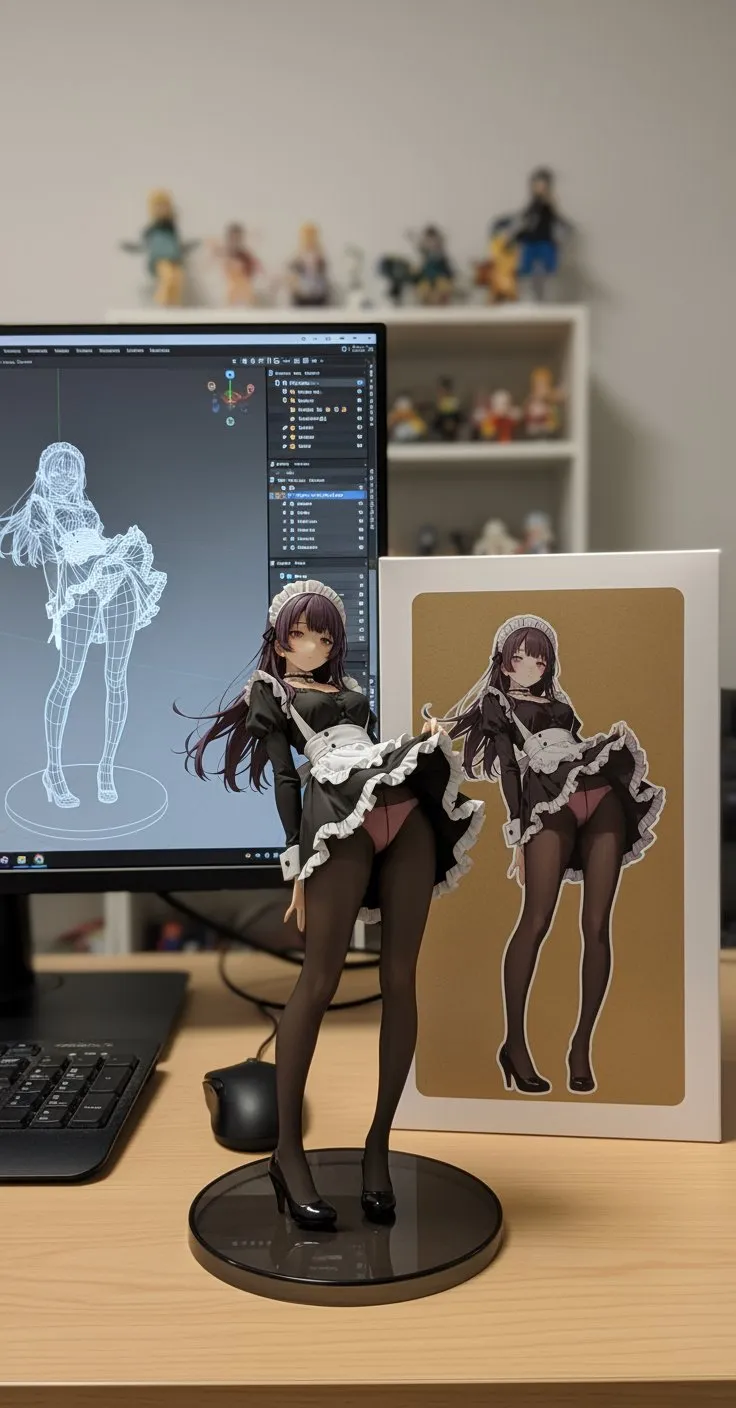
| 16 | Figurine concepts | Reimagine the subject as a collectible figure with packaging and accessories. |
| 17 | Concept art | Turn a rough sketch into a finished environment while preserving composition. |
| 18 | Personalized gifts | Adapt a supplied idea into a card, print, or illustration after checking rights. |
Fashion Mockups
Fashion teams can test silhouettes, outfits, and campaign directions before a shoot. Separate identity, clothing, and pose references so each image has one clear role.
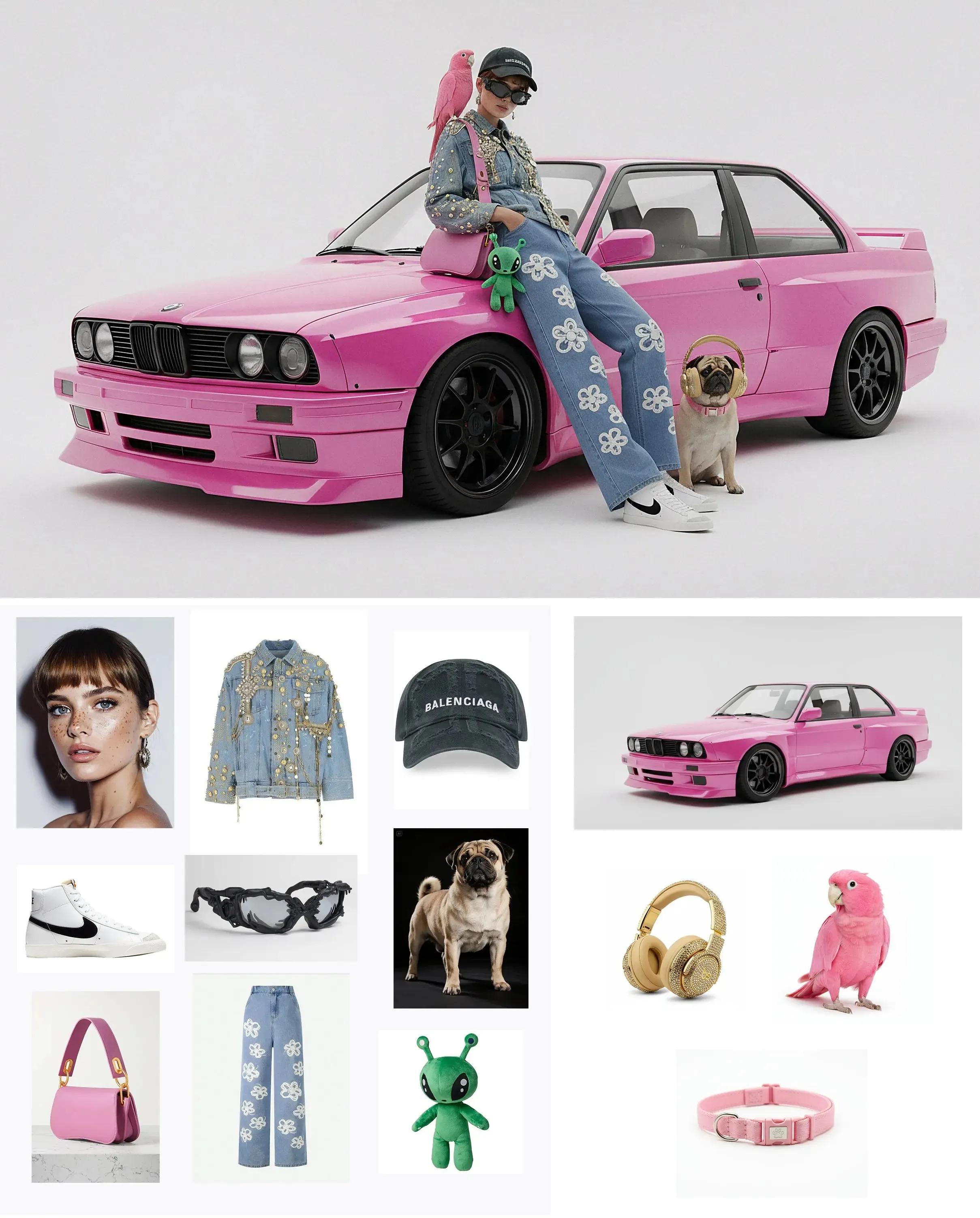
Use the complete Nano Banana AI fashion stylist workflow for outfit and lookbook tasks.
Storyboards and Sequential Scenes
For a sequence, define a small continuity sheet before asking for frames: character description, clothing, location, palette, camera language, and the detail that must connect one frame to the next.
Prompt Checklist for Better Results
Before generating, confirm that your prompt includes:
- Subject: who or what must appear.
- Action: what the subject is doing.
- Scene: environment, time, weather, and important objects.
- Composition: shot size, angle, placement, lens feel, and negative space.
- Lighting: source, direction, softness, contrast, and color temperature.
- Style: one coherent visual language rather than many conflicting references.
- Constraints: exact details that must remain unchanged.
- Output: aspect ratio, platform, and intended use.
For more examples, open the Nano Banana prompt guide or copy a specific pose prompt template.
Common Problems and Fixes
| Problem | Likely cause | Better next prompt |
|---|---|---|
| Face or character changes | The identity reference competes with style or pose | ”Keep facial geometry, hairline, eye color, and identity unchanged. Change only the pose.” |
| Product shape drifts | The model treats the item as inspiration | ”Preserve exact silhouette, proportions, materials, cap, and label placement.” |
| Garbled text | Too much copy or weak hierarchy | Shorten the copy, quote it exactly, and ask to fix text only in a second pass. |
| Strange hands | Hands are small, hidden, or anatomically complex | Use a clearer pose reference and request visible, natural hands with separated fingers. |
| Wrong object count | The scene contains many similar elements | State the exact count and spatial relationship in one sentence. |
| Edit changes everything | The instruction does not define a preservation boundary | Say “replace only” and list every protected element. |
| Flat or generic result | The prompt names a style but not a composition | Add framing, subject placement, lens feel, light direction, and one visual reference. |
| Inconsistent series | Each frame starts from a fresh description | Reuse the same reference image and continuity block for every frame. |
The fastest recovery strategy is usually select, then refine: generate several candidates, choose the one with the strongest structure, and correct small details without reopening the whole composition.
Nano Banana vs Other Image Tools
| Tool type | Choose it when | Main tradeoff |
|---|---|---|
| Nano Banana | You want conversational generation, editing, reference fusion, and fast revisions in one place | Exact local control and small details can still drift |
| Midjourney-style generator | Aesthetic exploration and stylized text-to-image output matter most | Targeted edits and repeatable identity may require extra work |
| Photoshop | You need pixel-level, masked, reversible, and legally reviewable production control | Slower and more skill-intensive |
| 3D pose tool | Body position and camera geometry must be exact | Usually needs a separate renderer or image generator |
These tools are complementary. A practical professional stack may use a pose tool for geometry, Nano Banana for visual development, and Photoshop for final pixel-level approval.
Before You Publish or Sell an Image
Run a final human review. AI output can look finished while containing expensive mistakes.
- Zoom in on faces, hands, labels, logos, reflections, edges, and repeated objects.
- Verify every word, number, diagram label, and factual statement.
- Confirm consent and usage rights for uploaded people, products, artwork, and photos.
- Check Google’s current terms and prohibited-use policy for the account and product used.
- Do not imply a fake endorsement or hide materially deceptive AI manipulation.
- Keep the source images, prompts, selected output, and final manual edits for your records.
Google says Gemini-generated images use SynthID, its invisible watermarking technology, and may also include visible indicators. Do not promise clients that generated media is unmarked or impossible to identify.
Official Sources and Freshness
This guide was reviewed on August 21, 2026 against Google’s current product pages. Availability, quotas, resolution, model routing, and plan benefits can change.
- Google Gemini image generation overview
- Google Help: generate and edit images with Gemini Apps
- Gemini API image-generation documentation
- Google Generative AI Prohibited Use Policy
Related Nano Banana Guides
- Nano Banana 2 updates and creative workflows
- Nano Banana pose-reference workflow
- Nano Banana pose prompt templates
- Keep the same character across new poses
- Nano Banana prompt guide
- Nano Banana fashion stylist workflow
- NanoBanana portrait photography guide
- AI poster design with Nano Banana
- Nano Banana wedding invitation posters and Seedance-style video
- Seedance 2.5 bullet time from Nano Banana product stills
- Nano Banana stills after the Sora API sunset: Seedance, Kling, and Veo
- Nano Banana as a Photoshop alternative
Final Recommendation
Start with Nano Banana 2 in Gemini and use a structured prompt that defines the subject, composition, lighting, constraints, and output. For editing, make one change per turn and explicitly protect everything that must stay fixed. Generate options, select for structure, refine details, and complete a human rights-and-quality review before publishing.
Frequently Asked Questions
What is the Nano Banana AI image generator?
Nano Banana is the name used for Google's Gemini image-generation and editing models. In Gemini, it can create an image from text, edit an uploaded image, combine references, render text, and preserve a subject across revisions.
Is Nano Banana free to use?
Gemini offers image generation without a paid Google AI plan, but availability and usage limits vary by account, country, age, and product. Paid plans add higher limits and access to Nano Banana Pro features; check Gemini before starting a large batch.
Where can I use Nano Banana?
Most people should use the official Gemini web or mobile app. Developers can use supported Gemini image models through Google AI Studio and the Gemini API. Features, model names, quotas, and regional availability can change.
Which Nano Banana model should I choose?
Use Nano Banana 2 Lite for quick basic concepts, Nano Banana 2 for most generation and multi-reference editing, and Nano Banana Pro when text, complex instructions, world knowledge, or precise creative control matter most.
Can Nano Banana edit an existing photo?
Yes. Upload a photo, state the single change you want, and explicitly list what must remain unchanged. You can continue refining the generated result in the same conversation. Image editing has stricter age requirements than generation in Gemini.
Can I use Nano Banana images commercially?
Do not assume every output is automatically safe to publish or sell. Review the current Google terms for your account and product, confirm you have rights and consent for uploaded material, and check trademarks, faces, labels, text, and factual claims before commercial use.
Why does Nano Banana change the face, product, or text?
Drift usually happens when the prompt asks for too many changes or fails to lock important details. Make one change per turn, name what must stay fixed, use clear references, and refine the strongest candidate instead of restarting every time.